


Use APKPure App
Get Screen Recorder old version APK for Android

Screen Recorder is a screen recording and screenshot app that captures your Android display with sound.
Screen Recorder focuses on fast, reliable capture for gaming, tutorials, and daily use. It keeps controls simple so you can start or pause recordings without leaving your current app. The interface supports clear video output and practical tools that help you prepare, record, and save clips in a few taps. It works well for streamers, teachers, and anyone who needs to share what is on screen. You control where files are stored, and you can organize recordings for later editing or sharing. The experience remains stable across popular Android phones.
Quick start controls
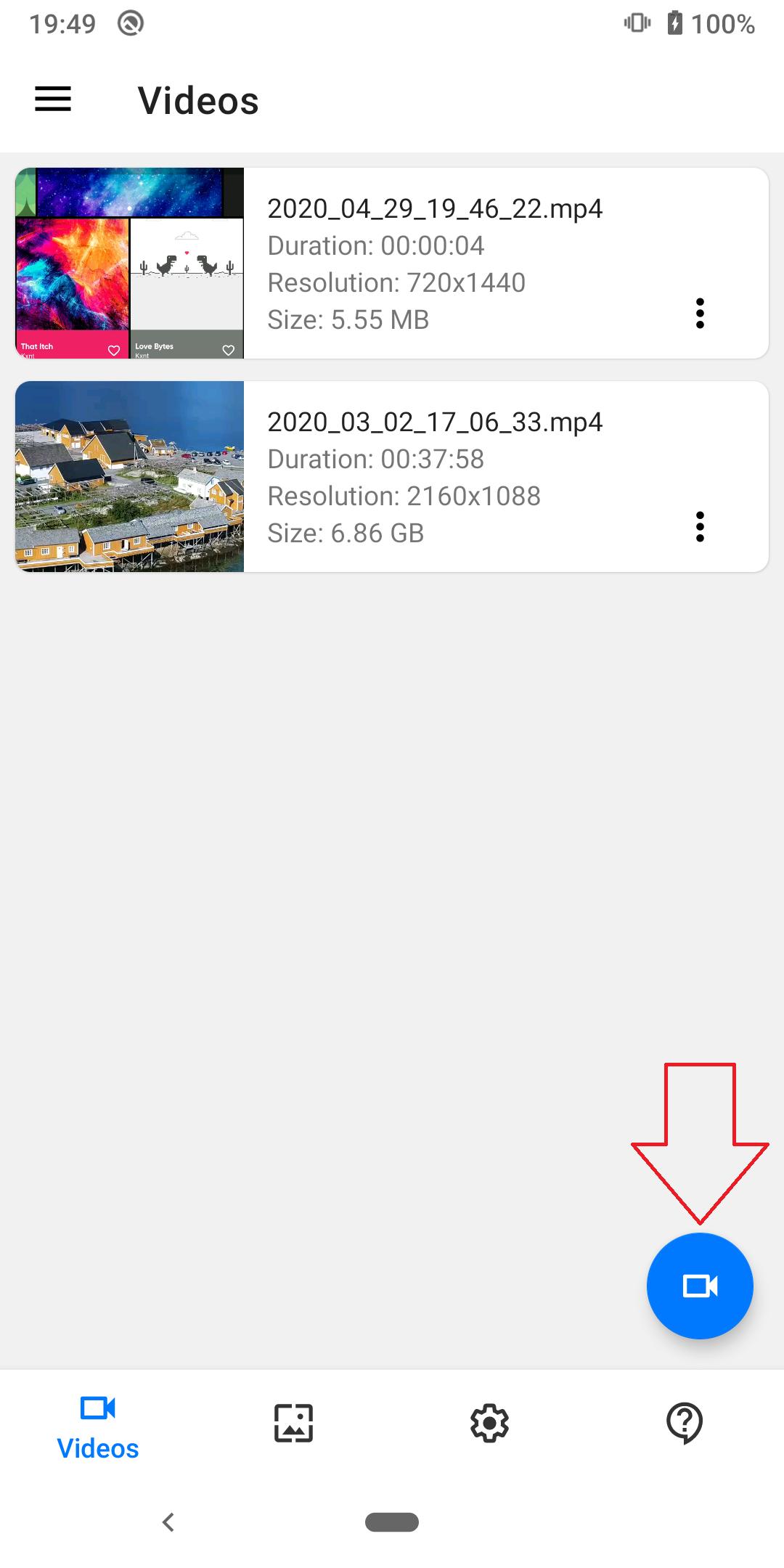
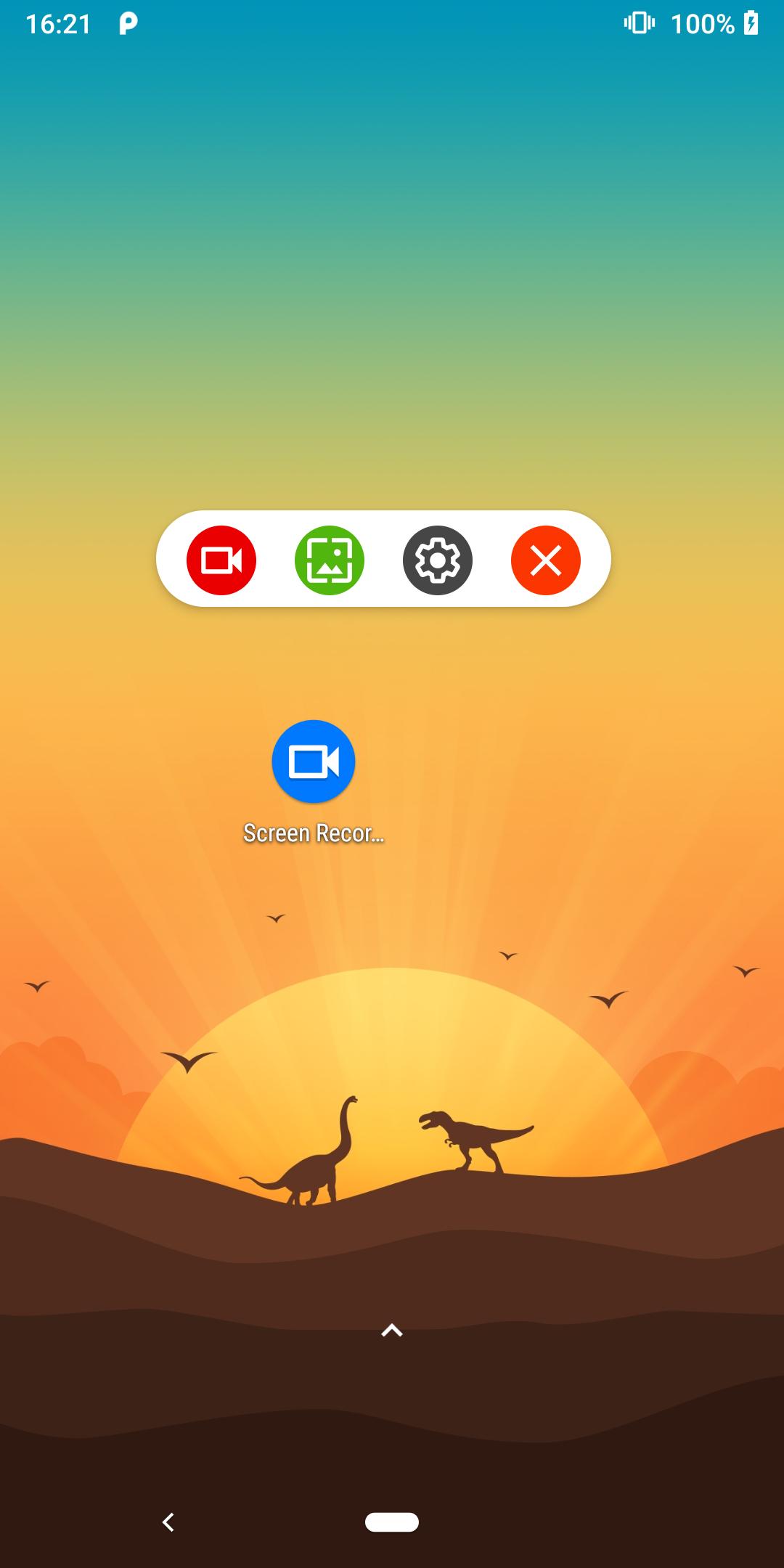
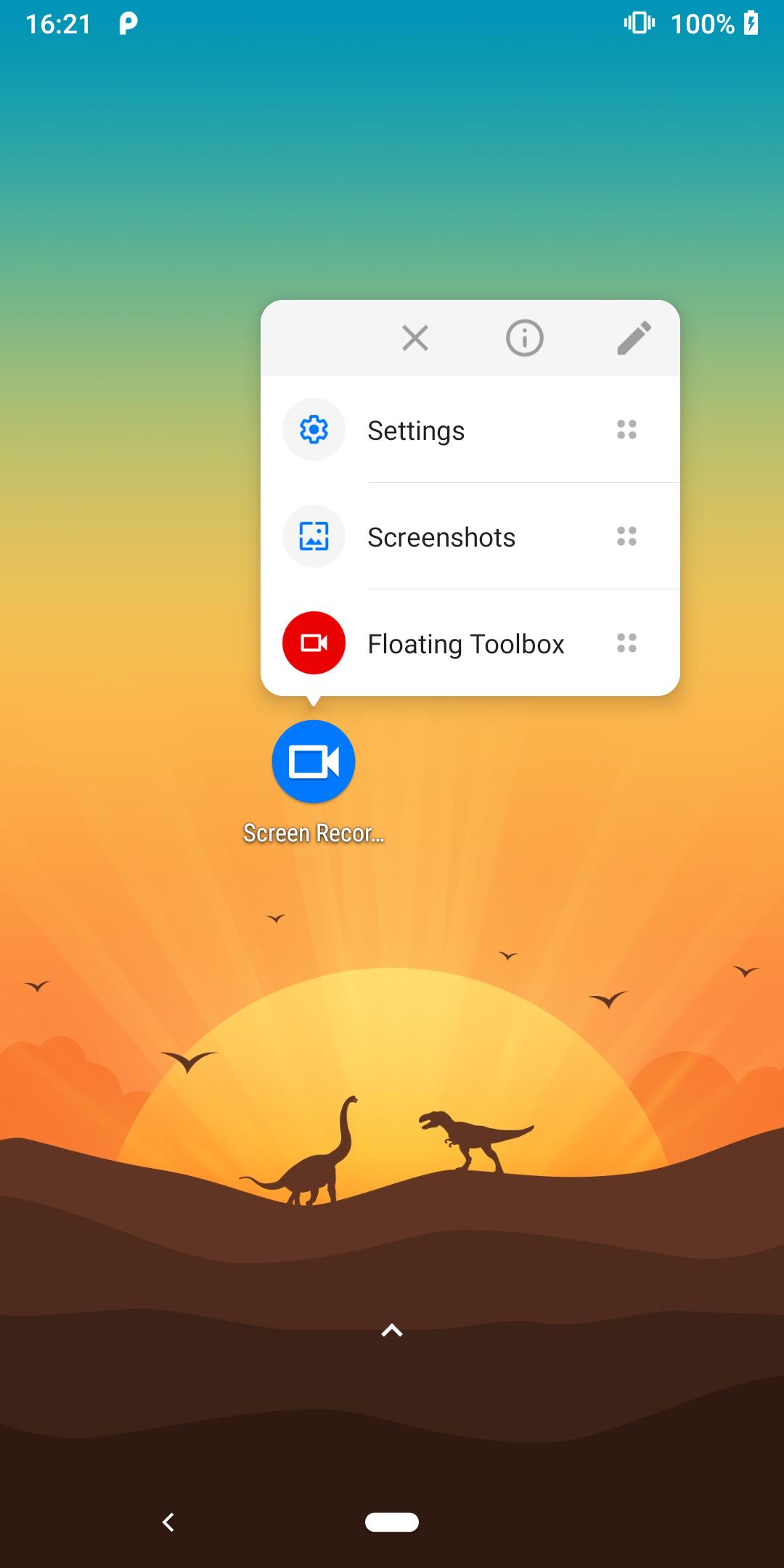
Screen Recorder adds one tap recording to your Quick Tiles and includes a floating Magic Button. You can start, pause, and stop without opening the app. This helps you capture moments on time while keeping the screen clean.
Flexible sound capture
Screen Recorder lets you choose the audio source that fits the moment. You can record with the microphone, and on Android 10 and above you can capture internal audio when the app or game allows it. Therefore you can switch sources as your content changes.
Facecam overlay
Screen Recorder supports a picture in picture facecam using the front or back camera. You can double tap to switch cameras during a session. This makes tutorials and gameplay commentary easy to follow.
On screen drawing and quick trim
You can draw on the screen while recording to point out steps or highlight buttons. After you finish, use the built in trim tool to cut the start and end of your MP4 video. As a result, your clips look cleaner without extra apps.
Custom save locations and logo
Screen Recorder lets you choose where recordings go, including internal storage or an SD card. You can also add your own logo as text or an image. This helps you keep files organized and keep your branding consistent.
Themes and languages
Screen Recorder provides Day and Night themes for comfortable use in different lighting. The interface supports multiple languages so you can set it up in a familiar way. This keeps the workflow simple for more users.
Internal audio capture on Android follows system rules. On Android 10 and above, Screen Recorder can capture playback audio only when the other app or game permits it. If the app does not allow playback capture, internal sound will be muted by design. You can learn more about Android playback capture from the official documentation at developer.android.com. Therefore, if a title does not record internal sound, switch to microphone input or enable sound inside the app itself.
Recordings are saved locally to the storage location you choose. Files remain on your device unless you share them. Screen Recorder requests permissions only to record the screen, capture audio, save files, and use the camera for facecam. This setup helps you keep control of your content at all times.
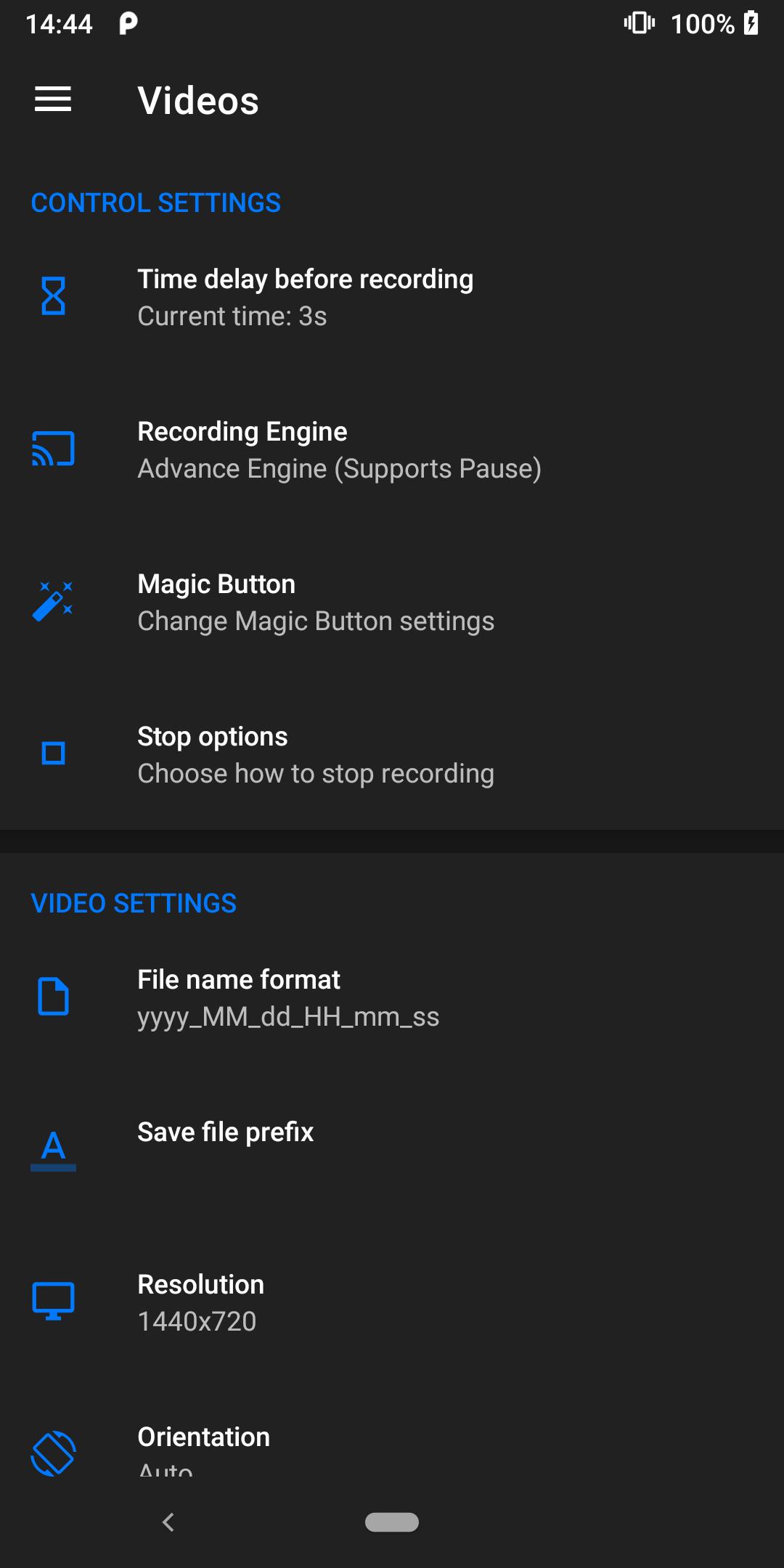
Screen Recorder lets you add a custom logo as text or an image. Recording length primarily depends on available storage and device performance. You can check the in app settings to review watermark choices, maximum duration options, and any advertising settings provided by the developer in your build.
This quick guide shows the basics so you can start capturing right away. You can follow the steps and adjust settings as needed for your content.
Screen Recorder offers practical tools for gamers, creators, and everyday users who need to capture clear on screen moments. Get the Screen Recorder APK latest version on APKPure to record, annotate, and save videos where you want.
Can Screen Recorder capture internal audio on my phone?
Yes, Screen Recorder can capture internal audio on Android 10 and above when the app or game allows playback capture. If the source app blocks capture, the recording will not include internal sound by system rule. You can switch to microphone input or see the Android guidance at developer.android.com.
Why is there no sound when recording calls, WhatsApp, or in game voice chat?
Screen Recorder cannot record calls or some VoIP and chat audio because those apps reserve the microphone or restrict capture for privacy. When another app uses the mic, disable Record sound in Screen Recorder or wait until the call ends. For games, use internal audio on Android 10 and above if the title supports playback capture.
How do I download and install Screen Recorder APK?
To download Screen Recorder, get the Screen Recorder APK on APKPure and tap Download. After the file is saved, open it, allow installs from this source if prompted, and follow the on screen steps. You can also return to APKPure anytime to check for the Screen Recorder APK latest version.
Where are my recordings saved and who can access them?
Screen Recorder saves files to the folder you select in settings, including internal storage or an SD card. Your videos remain on your device until you share them. Only apps you authorize can access those files.
Will my recordings play on other devices?
Yes, Screen Recorder saves videos as MP4 which most modern phones, tablets, and computers can play. If a device cannot open the file, install a standard media player that supports H.264 and AAC.
I used AZ Screen Recorder, Loom, or ScreenRec. How is this app different?
Screen Recorder focuses on Android capture with fast controls like Quick Tiles, a floating Magic Button, facecam, and on screen drawing. If you are switching from other screen recorder app download options, you will find a mobile friendly workflow with storage control, including save to SD.
Last updated on Sep 27, 2021
Updated the Arabic language
Latest Version
 1.2.6.7
Uploaded by
Robin Zawlin
Requires Android
Android 6.0+
Category
Report



Discover what you want easier, faster and safer.
