


Use APKPure App
Update WhatsApp Automatically

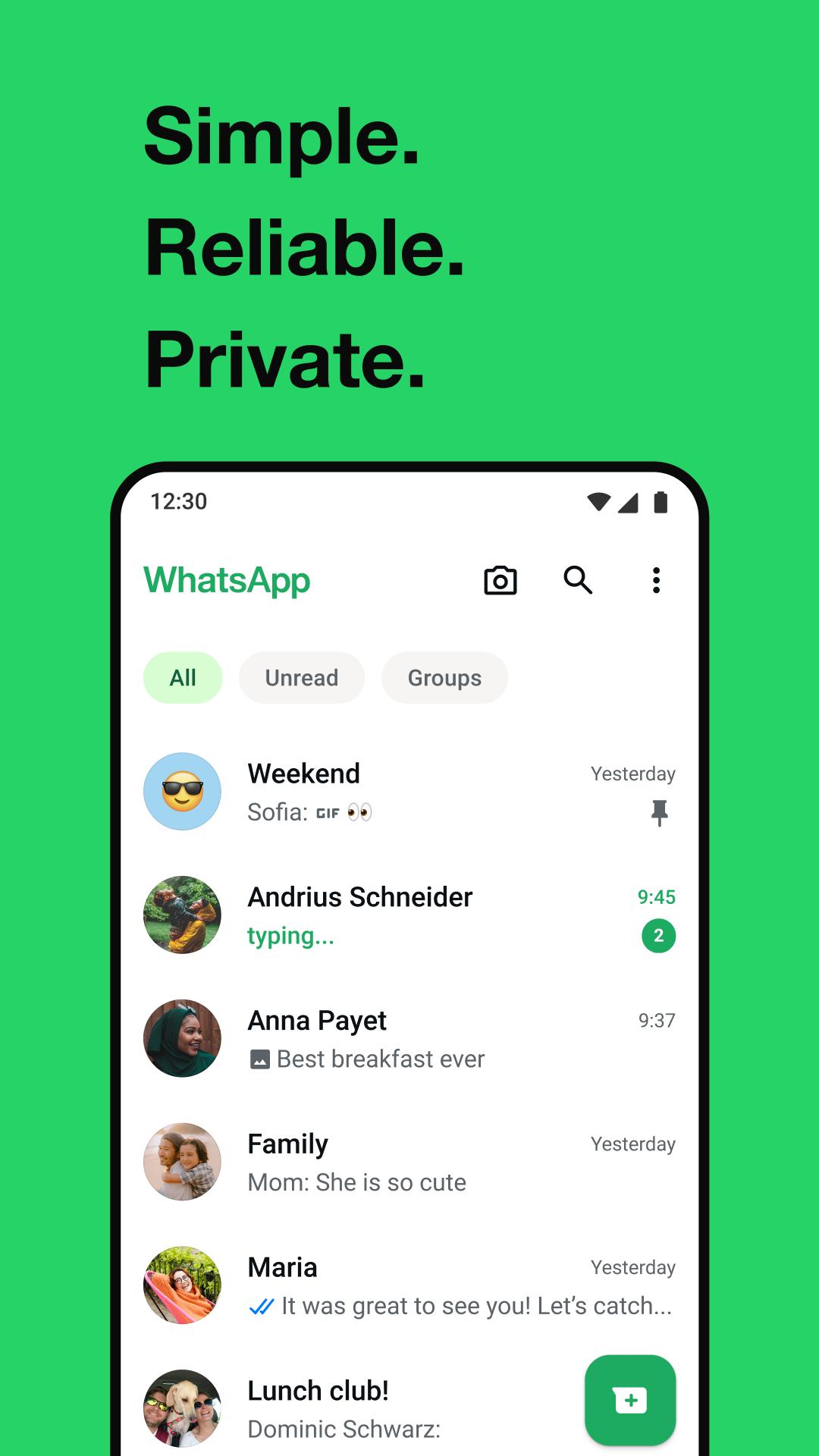
WhatsApp is a messaging and calling app that connects you across phones, computers, and the web.
WhatsApp helps when you want a quick way to stay in touch with people you know in one familiar place. It uses your phone number so you can start without creating usernames, and chats follow a simple, readable layout. Messages and calls work across your phone and linked devices, which keeps everyday communication straightforward. If you plan to download WhatsApp messenger apk, it supports one-to-one talks and group conversations for family, friends, and teams throughout your day.
Private by default
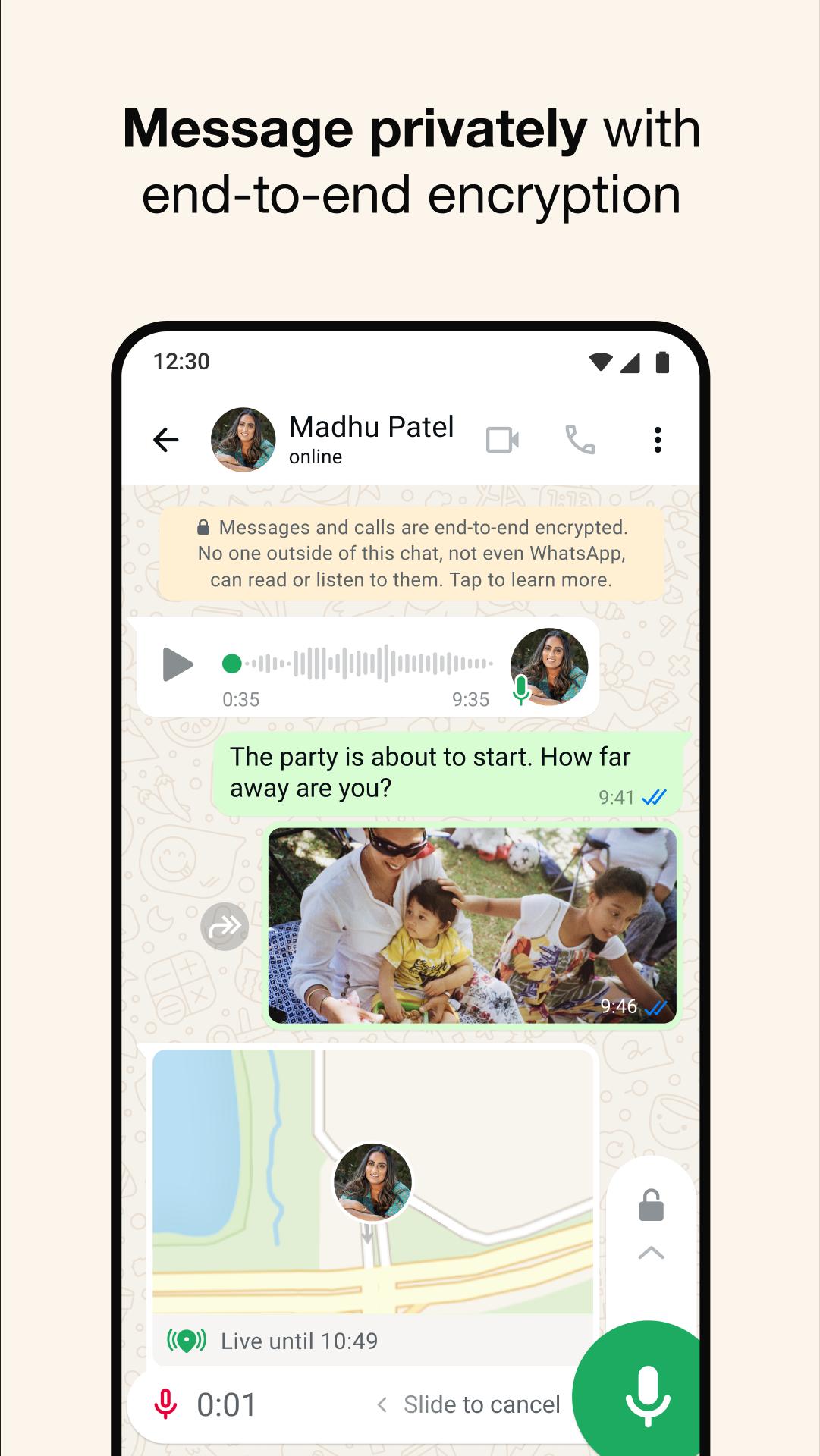
WhatsApp messenger apk uses end to end encryption for messages, calls, groups, and shared media by default. Only you and your chosen contacts can read or listen to what is sent, and no extra steps are needed to turn it on. This setup helps keep personal chats and group discussions protected as you talk across devices.
Voice and video calls for small or large groups
You can place secure voice and video calls with up to 32 people. Calls are designed to work even on slow networks, which helps when signal strength varies. On desktop, screen sharing is supported during video calls so you can show a document or walk someone through a task while you talk.
Share more than text in your chats
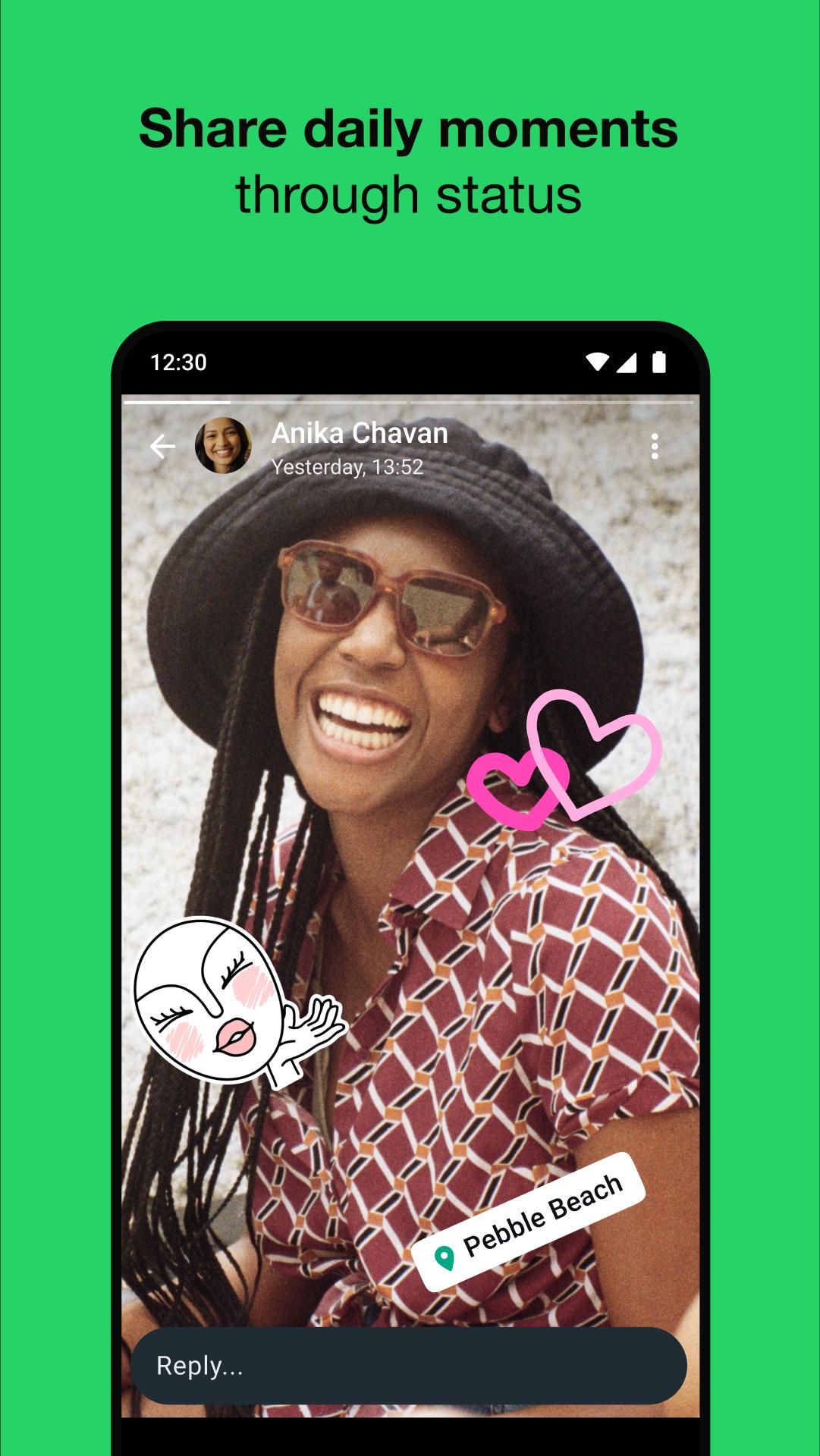
WhatsApp messenger app lets you send photos, videos, documents, and voice messages, and you can add stickers or GIFs to keep conversations lively. Live location sharing helps contacts know where to meet, and you choose how long it stays visible. For quick updates, post to Status so friends can see photos, videos, or text that disappear after 24 hours without filling your chat list.
Groups and Channels for organized updates
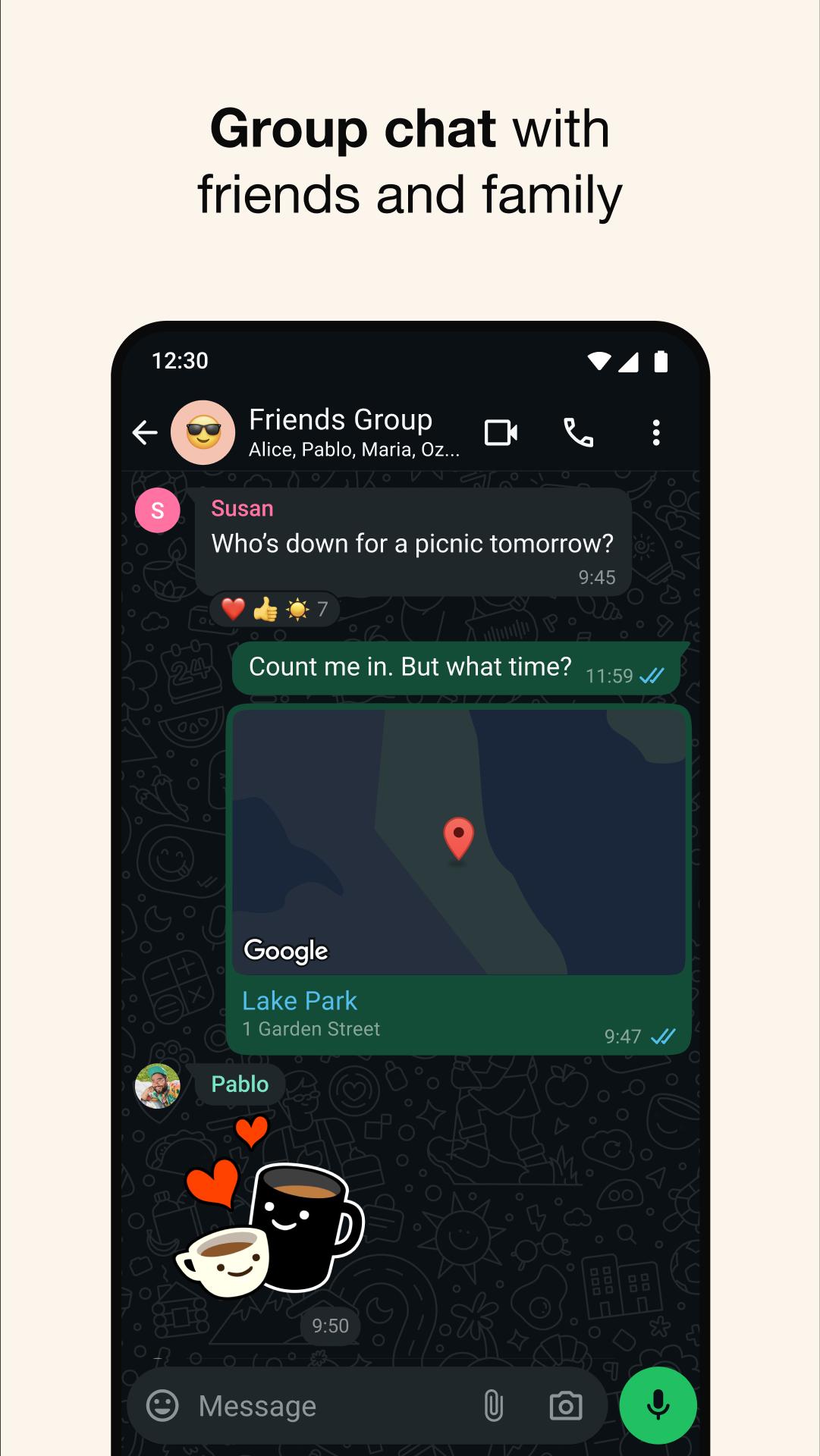
Create group chats for family, friends, or teams to coordinate plans and keep track of replies in one thread. When you want to follow news, hobbies, or community updates without starting a chat, use Channels. Channel posts appear in a separate tab so private conversations stay uncluttered, and you can browse or mute updates at any time.
Cross device use and simple setup
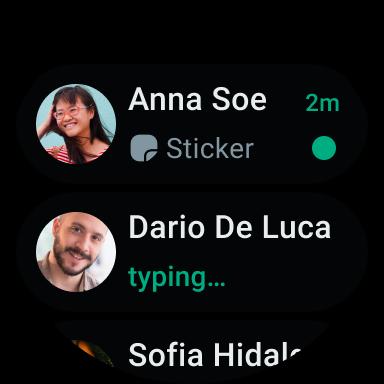
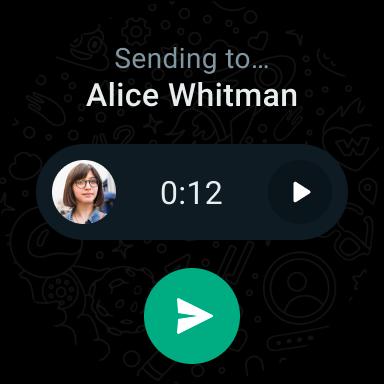
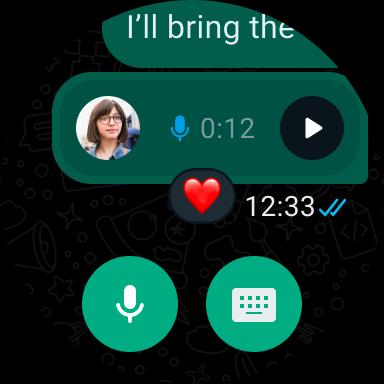
WhatsApp messenger starts with your phone number, and your contacts are discovered automatically if they already use the app. You can link Windows or Mac computers, an iPad, or use WhatsApp Web to keep chats going when you switch screens. Wear OS support lets you read, reply, and take calls from your watch. Meta AI is available inside WhatsApp as a built in helper for quick answers and ideas, designed with privacy in mind.
Getting started takes only a few steps on most phones, and the basics are easy to learn. For the best experience and new tools, keep the app updated to the WhatsApp latest version. The flow below covers setup and the first things to try.
1. First, install the app on your Android phone and open it. Read the prompts on screen so you know what the app will use.
2. Next, enter your phone number and verify it with the SMS code sent to you. Add your name and, if you like, a profile photo.
3. Then allow contact access so people you know appear in your chat list. You can also grant media and location permissions when you want to share files or your live location.
4. After that, open any contact to start a chat and send a message or voice note. Tap the call button to place a voice or video call, and use the Status tab to post a quick update that disappears after a day.
5. Finally, go to Settings and open Linked devices to connect a computer or tablet by scanning the QR code for WhatsApp Web or the desktop app. If you use a Wear OS watch, enable notifications and replies in the companion app to manage chats from your wrist.
WhatsApp messenger download brings private messages, clear calls, and organized updates together across your phone and linked devices. If this setup matches your daily communication needs, download WhatsApp apk from APKPure, install it on your Android phone, and you can start chatting.
For official resources and help, visit the website below.
Official website: https://www.whatsapp.com/
1. What is WhatsApp Messenger?
WhatsApp Messenger is a free messaging and calling app with end‑to‑end encryption. It supports whatsapp messenger backup to Google Drive or iCloud, allows group chats, voice/video calls, and file sharing. Many users look for whatsapp messenger apk download to install it manually on Android.
2. Is WhatsApp Messenger the same as WhatsApp?
Yes, it is exactly the same. "WhatsApp" is the short name for "WhatsApp Messenger". Whether you read a whatsapp messenger review or use the app directly, both refer to the same service.
Last updated on Apr 30, 2026
• You can now add a custom Member Tag to let everyone know your role in the group chat. Open the group chat, tap the group name and scroll to the members list. Tap Add member tag and type in your role to show people who you are or how you’re known in this group.
These features will roll out over the coming weeks. Thanks for using WhatsApp!
Latest Version
 2.26.16.72
Uploaded by
Bodya Js
Requires Android
Android 5.0+
Available on

Category
Report


Discover what you want easier, faster and safer.
