


Use APKPure App
Get Rotation Control old version APK for Android
Rotation Control is a utility app that fixes and forces screen orientation from your notification area.
Rotation Control helps when apps rotate at the wrong time, when a dock locks your screen, or when a car mount flips your phone. It keeps orientation control within easy reach so you can hold the screen steady while reading, watching, or navigating. Because controls live in a persistent notification, you can change orientation without leaving your current app. If you want quick results, simply download Rotation Control and set a preferred orientation for consistent behavior across your device.
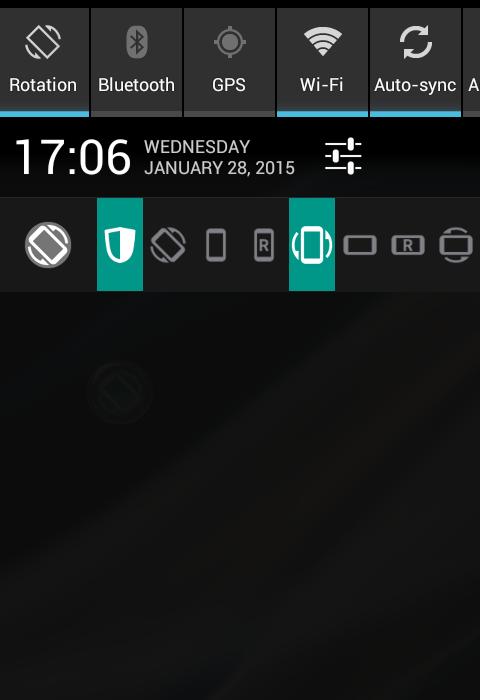
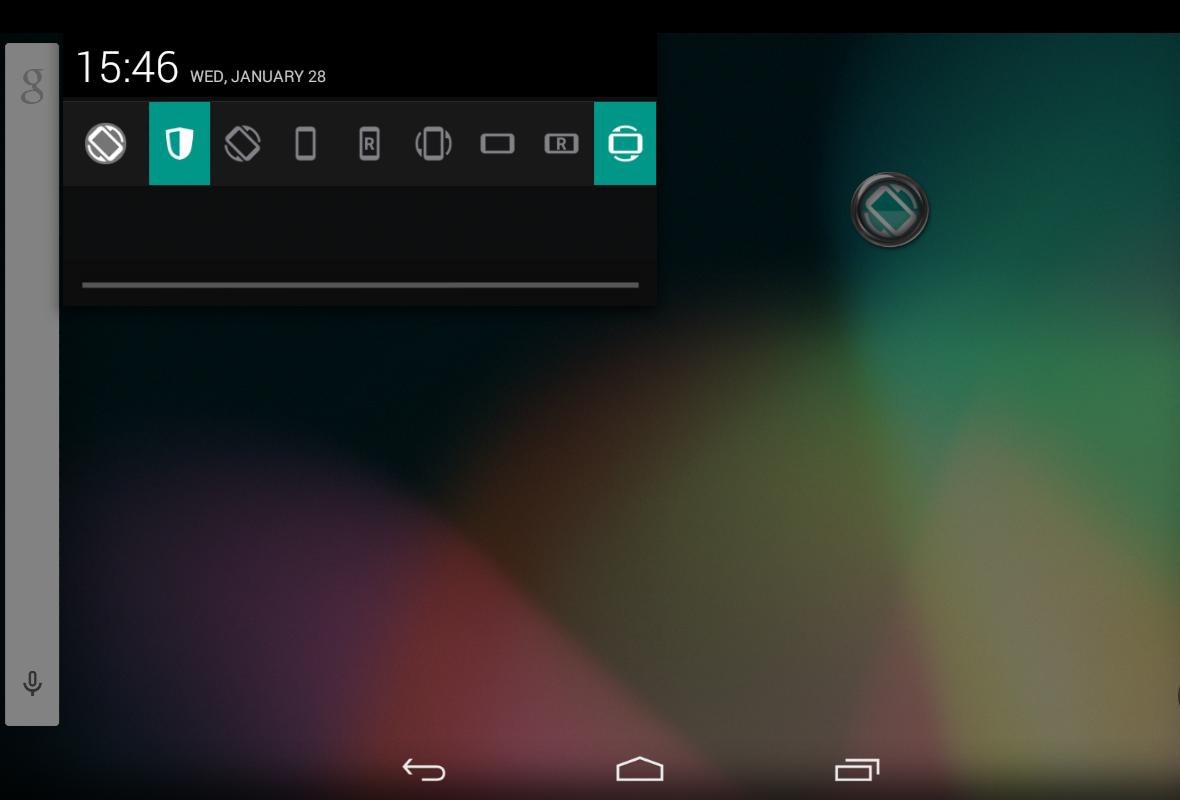
Rotation Control places one tap orientation buttons in your notification shade. You can customize which buttons appear, so the options you use most are always available. This layout helps you switch modes instantly while staying inside any app.
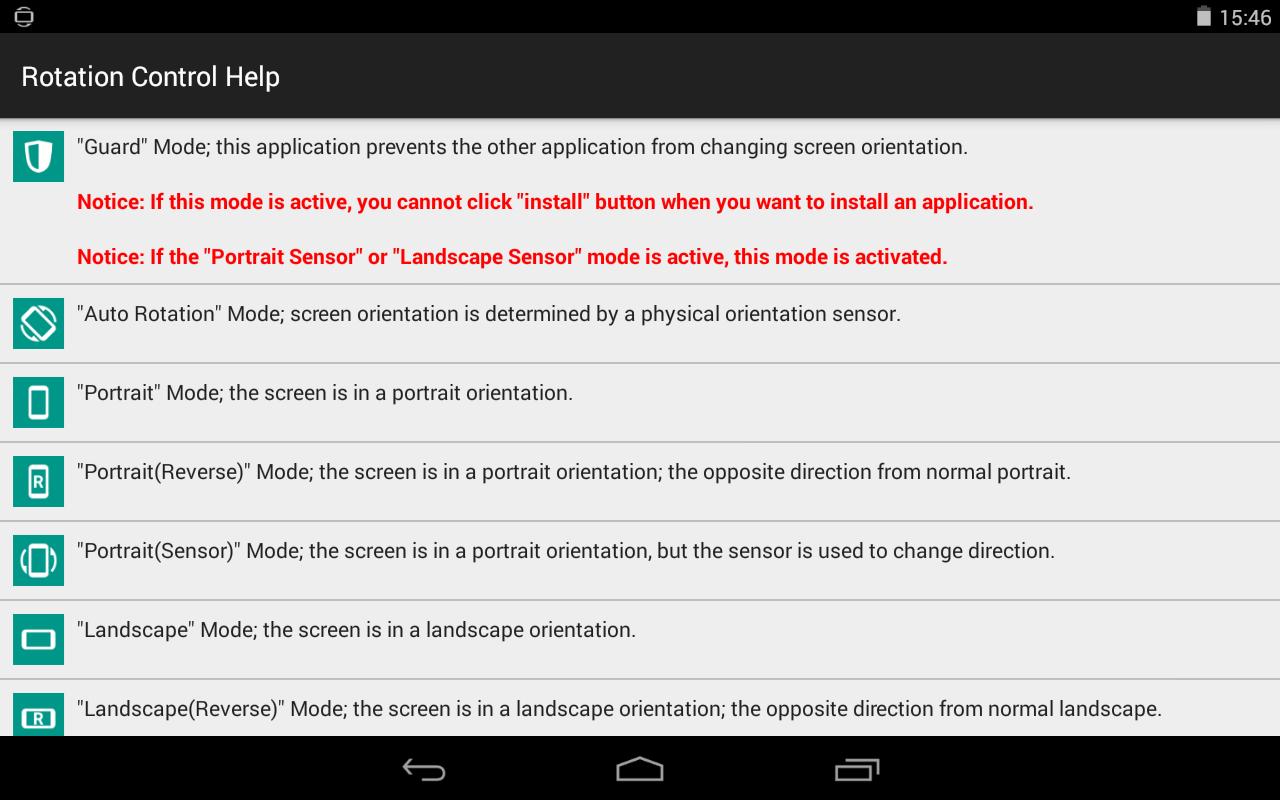
Complete orientation modesThe app covers common and extended orientations, including Auto Rotation, Portrait, Portrait Reverse, Portrait Sensor, Landscape, Landscape Reverse, and Landscape Sensor. You can fix the screen to a single direction or choose a mode that matches how you hold your device. This range gives you practical choices for daily tasks at home, at work, or on the move.
Guard mode to prevent unwanted changesGuard mode locks your chosen orientation and stops other apps from changing it. This is useful when an app, launcher, or video starts to rotate against your preference. You can turn Guard on when stability matters and turn it off when you want the system to manage rotation again.
Sensor based direction within a fixed orientationSensor options keep the screen in portrait or landscape while using the device’s orientation sensor to flip between normal and reverse. This is helpful when the phone is upside down in a car mount or on a charger. You get a steady layout that still adapts to how you hold the device.
Privacy conscious designThe developer states that no data is collected and no data is shared with third parties. Rotation Control focuses on on-device behavior and does not require account sign in. This approach suits users who prefer simple tools that do not handle personal data.
For reliable operation, enable notifications so the persistent controls can appear. Some devices also require permission to appear on top to let the orientation bar display over other apps. If your phone needs Accessibility for background operation, the app will guide you to turn it on. Granting these permissions helps ensure the controls stay responsive in different apps and on the home screen.
When Guard is active, it can block the system Install button on some devices. If you are installing or updating other apps and the button does not respond, temporarily disable Guard, complete the installation, then turn Guard back on. In addition, certain orientation modes may be limited by device hardware or manufacturer settings. If a mode does not appear or does not hold, the limitation is likely device specific rather than a fault in the Rotation Control app.
Real world cases include keeping the screen upside down in a dashboard mount so the cable routes cleanly, or holding landscape on a tablet while still letting it flip to reverse when docked. It also helps when reading in bed, preventing sudden rotation while you change posture. For best results on supported devices, consider using the Rotation Control latest version so newer fixes and mode refinements are available.
This short guide covers the basics of setting up screen rotation control. If you installed the Rotation Control APK, follow these steps to make the controls appear and keep your preferred orientation steady.
Rotation Control offers quick access to fixed and sensor based orientations from a simple notification. Set a preferred mode, enable Guard when needed, and keep your screen steady across apps. To stay up to date, get the Rotation Control latest version when it becomes available.
For support or feedback, contact the developer:
Last updated on Dec 11, 2023
- Follows the latest SDK
- You can chose notification buttons
- Deletes the notification priority
Latest Version
 1.1
1.1
Uploaded by
Lushun Amir
Requires Android
Android 8.0+
Available on

Category
Report






Discover what you want easier, faster and safer.
