


Use APKPure App
Get Panda Gamepad Pro old version APK for Android

Panda Gamepad Pro is a keymapping app that lets you play Android games with a gamepad.
Panda Gamepad Pro focuses on users who prefer a physical controller over touch controls. It maps your gamepad inputs to mobile games so you can aim, move, and trigger actions with familiar buttons. Because it is built specifically for gamepads, setup stays straightforward, and your in-game accounts continue to work as usual. As a result, you spend less time tweaking and more time playing. If you need a clean install package, you can get the Panda Gamepad Pro APK from this page.
Direct launch without cloning
Panda Gamepad Pro opens games natively so you do not need to clone apps. You launch the title you already have and play with mapped controls right away. This design also avoids duplicate instances that some games try to block, which helps reduce the risk of detection related to cloned environments.
Account login stays intact
You can sign in with your usual Google account inside your games. Panda Gamepad Pro does not interfere with the normal login flow. This means progress, purchases, and cloud saves tied to your account remain accessible after you switch to a gamepad.
Broad controller support
The app works with many Bluetooth and USB gamepads, including older and newer models. You connect your controller to the phone, then map buttons and sticks to match each game’s actions. This approach suits different layouts and preferences, so you can keep using the hardware you already own.
Works in most popular game genres
Panda Gamepad Pro supports many titles across shooters, MOBAs, sports, racing, and more. You assign movement, camera control, and action buttons so the controller feels natural during play. If a game updates its input behavior, you can adjust mappings and continue.
Flexible activation options
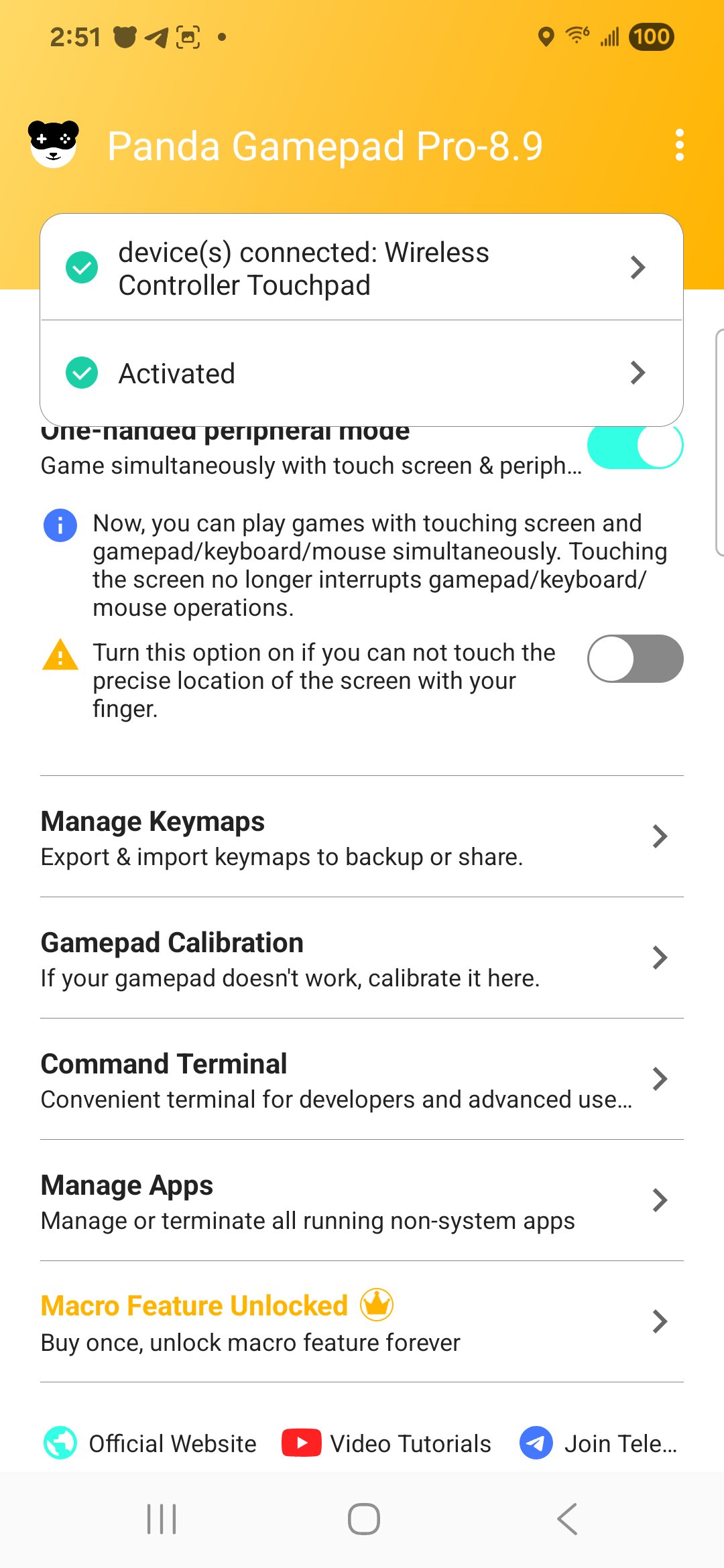
Activation is built to fit different Android versions and device states. On Android 11 or later, you complete activation on the phone. On Android 10 or earlier, a quick one time activation by computer may be required. If the device is rooted, activation completes automatically. A step by step guide is available on the official activation page for clarity.
Before the first play session, activation prepares your device to accept gamepad mapping. The developer documents three methods on the official page, including an option that uses a cable and ADB. For detailed steps, visit https://pandagame.app/a and follow the method that matches your device. After activation, you can open games directly through Panda Gamepad Pro and start mapping.
Most games work well with mapped controls, but individual titles may apply their own input rules. If a game limits external inputs, try adjusting your mapping and sensitivity, then test in a practice or training area first. For controllers, pair over Bluetooth or connect by cable for a stable link, and ensure the device recognizes your gamepad before configuring in the app.
If you prefer a keyboard and mouse instead of a gamepad, the developer also offers Panda Mouse Pro for that specific input method. Choose the tool that matches the way you want to play on your phone.
Getting started is straightforward once activation is complete. To avoid issues, make sure you are on the Panda Gamepad Pro latest version before setup, then follow the steps below.
Panda Gamepad Pro maps your controller to mobile games so you can play with console style inputs. For a clean setup and current files, download Panda Gamepad Pro here and follow the activation guide linked below.
For official resources and support, visit:
Last updated on Sep 30, 2025
Minor bug fixes and improvements. Install or update to the newest version to check it out!
Latest Version
 9.2
9.2
Requires Android
6.0
Available on

Category
Report




Discover what you want easier, faster and safer.
