


Use APKPure App
Get ApowerMirror old version APK for Android

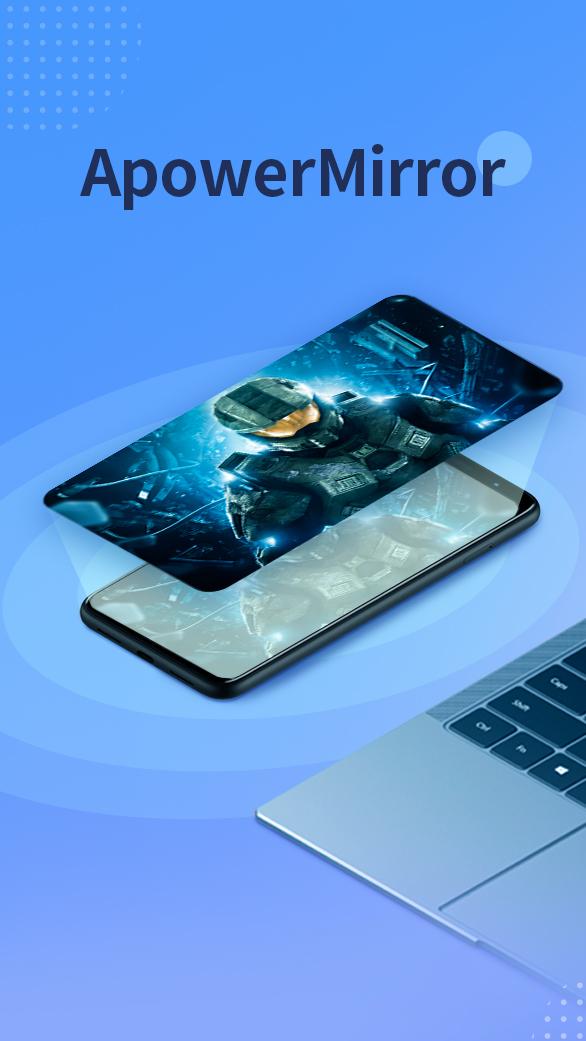
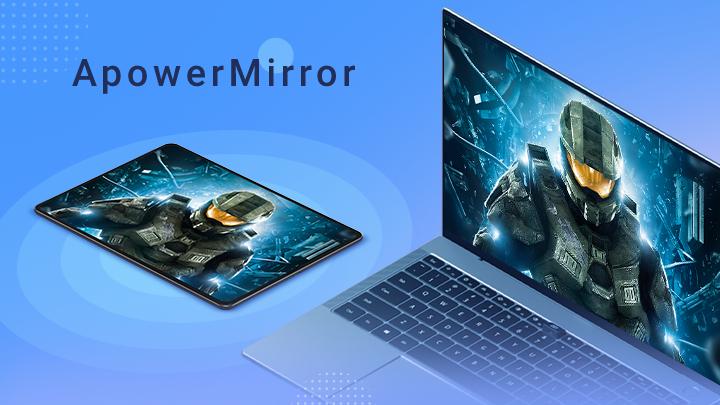
ApowerMirror is a screen mirroring app that displays your phone on larger screens with audio.
ApowerMirror fits everyday situations where you need to show your phone on a computer or TV for classes, meetings, or games. The mobile app pairs with the ApowerMirror desktop program so core tools are available when you connect. You can choose WiFi or a USB cable depending on your setup, and the process is straightforward for home or work. Because the app is designed for quick sharing, it helps reduce setup time. To begin, you can get the ApowerMirror APK and prepare your devices in advance.
ApowerMirror mirrors your Android or iOS screen to a PC, Mac, or Smart TV with sound. You can connect over WiFi or use a USB cable if you prefer a steadier link. Full-screen viewing is supported, and the playback is tuned for smooth visuals during videos, lessons, or app demos.
Control Android from a computerYou can operate Android apps from a keyboard and mouse on your computer after pairing. This setup helps when typing long messages, managing apps, or testing layouts. For gaming, preset virtual keys let you map controls and play without an emulator, which keeps the phone’s original environment intact.
Cross-network sharing with AirCastWhen the devices are not on the same network, AirCast helps you mirror across different connections. This is useful for remote support, online presentations, or quick collaboration. With a stable internet link, you can show content to clients or teammates without changing their local network settings.
Mirror up to four devices at onceApowerMirror can display as many as four phones or tablets on one computer screen at the same time. This view is practical for teachers, trainers, and hosts who need to compare apps or show multiple angles. You can arrange screens for a class, a meeting, or a livestream and keep the focus on what matters.
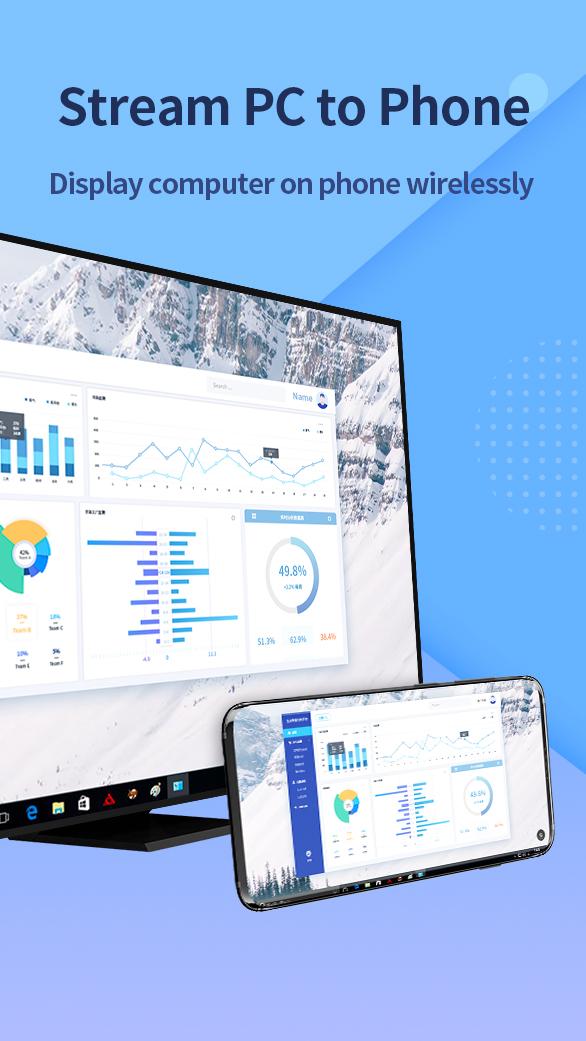
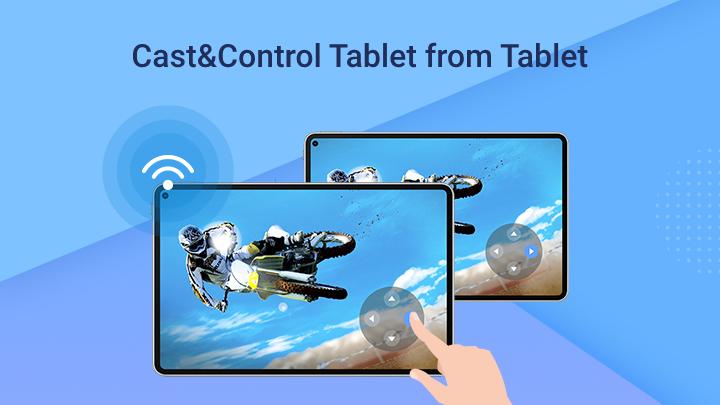
Built-in tools and easy streamingThe app includes screenshots, screen recording from the computer side, and a whiteboard for simple annotations. You can send the mirrored screen to OBS Studio or Zoom to build tutorials or run webinars. In addition, phone-to-phone/tablet mirroring and casting a computer screen to a phone are available for quick checks and on-the-go access.
The mobile app works together with the ApowerMirror desktop program to enable mirroring, recording, and control features. For Android reverse control, the app requests Accessibility permission so clicks and gestures from the computer can operate the phone. This permission only serves input and control functions and can be turned off at any time in your phone settings. ApowerMirror is also known as Apowersoft Phone Mirror in some materials, which refers to the same product family.
The free tier covers basic mirroring for quick sharing and testing. Time limits, a watermark, and single-device mirroring may apply, and Android mouse control is not included. Premium plans remove the watermark and extend session time, add Android control with mouse and keyboard, and enable AirCast for cross-network mirroring. Plans also support higher iOS display quality up to 2K and allow multiple devices to mirror at once. Specific plan details can change, so check the latest offer in the app or on the official site.
ApowerMirror can cast to Android TV devices and Smart TVs that support DLNA or AirPlay receiving. If the TV supports these protocols or has the ApowerMirror receiver app available, the phone can discover it on the same network. For best results, place the TV and phone on the same 2.4 GHz or 5 GHz WiFi and avoid busy networks. A “Try It Online” option is available on the official site to test mirroring in a browser before a full setup.
Setup starts from the phone, and a short pairing links it to a computer or TV. For a quicker start, download ApowerMirror and prepare your WiFi or a USB cable before connecting. The steps below outline the basic flow on Android.
ApowerMirror mirrors your phone to larger screens, adds Android control from a computer, and supports multi-device displays with practical tools. To stay current with performance and features, consider installing the ApowerMirror latest version when it becomes available.
For official resources or help, see the links below.
Last updated on Mar 29, 2026
Minor bug fixes and improvements. Install or update to the newest version to check it out!
Latest Version
 1.8.32.1
Uploaded by
WangxuTech
Requires Android
Android 6.0+
Available on

Category
Report




Discover what you want easier, faster and safer.
