


Use APKPure App
Get Fuzor Mobile old version APK for Android
Eğer herhangi bir Android cihaz kullanarak sitede yaparken sizin Fuzor projeleri görmek.
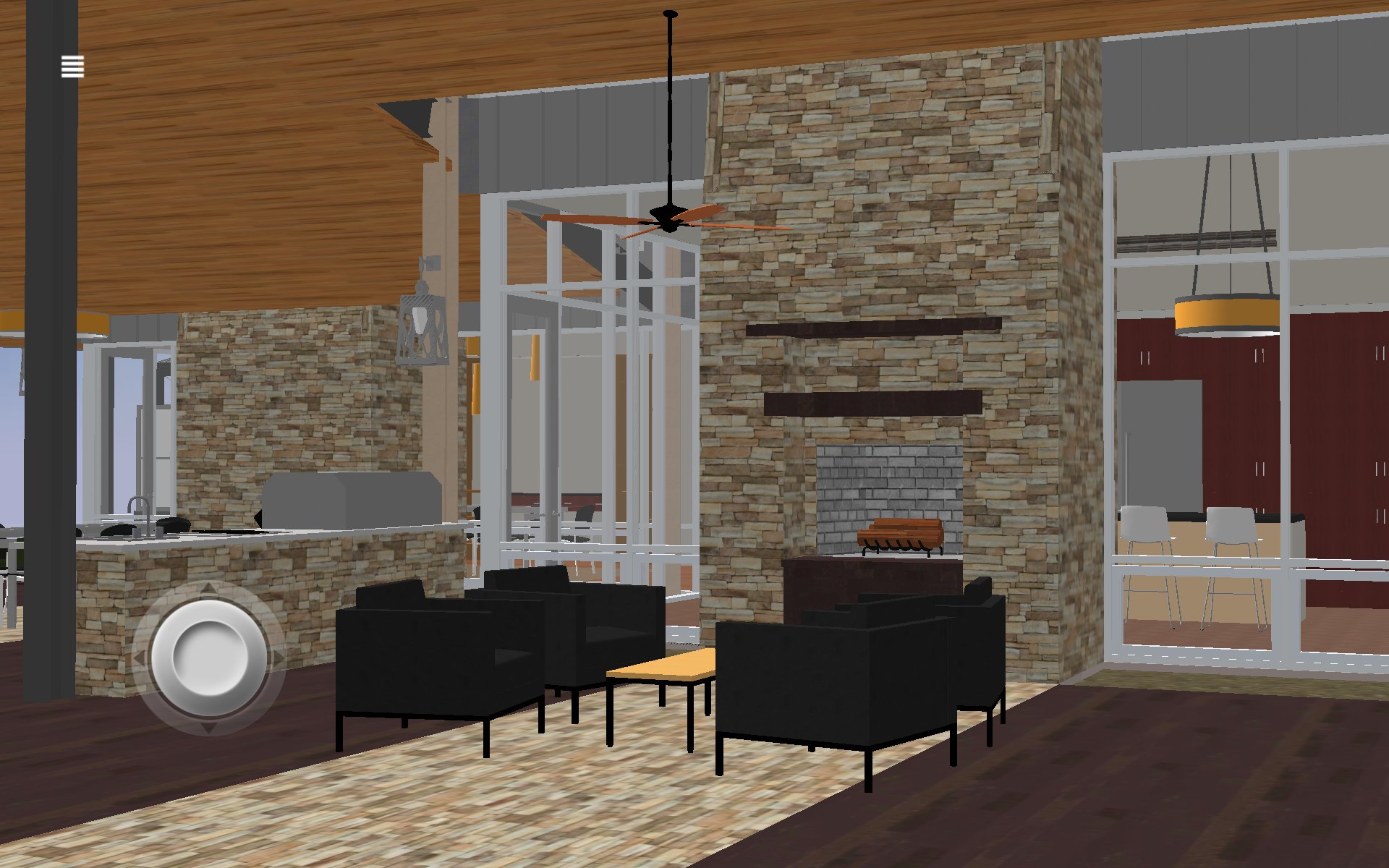
Fuzor Mobile allows you to move around, visualize, annotate, and inspect the BIM information of your Fuzor PC projects on any Android phone or tablet.
Instructions:
1. Launch your PC version of Fuzor.
2. Synchronize your Revit project or load in a Fuzor project (.che) file.
3. In the Save/Load tab, click on either the Dropbox, Google Drive, or Local buttons in the Mobile Cloud Panel.
4. Wait for the export to complete. If you selected Dropbox or Google Drive, wait for the upload to complete.
5. For the Local option, transfer the .fzm file to your device directly through usb on your computer
6. In Fuzor Mobile, find the file and select it, then press the Load button at the bottom.
7. Done! Enjoy viewing your model.
Menu Controls:
Touch the menu icon on the top left to access addition settings:
Abstract Mode: renders the scene using the Revit Models color information.
Realistic Mode: renders the scene using the Revit Models material information.
Annotation Manager: View/Save/Load annotations for a file.
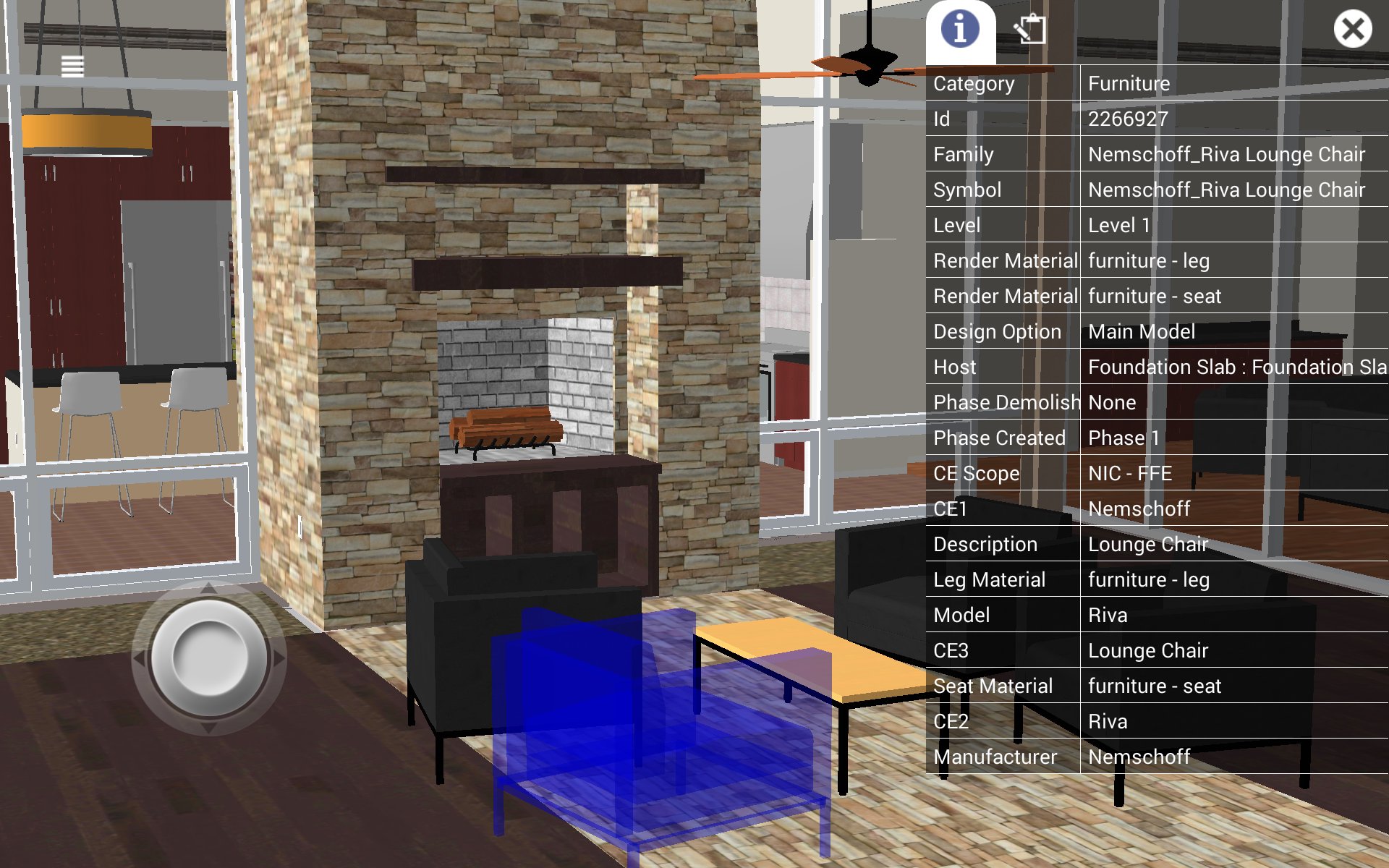
BIM Window:
Selecting an object will open the BIM window. From the BIM window the user can view all BIM values. Users are also able to click the annotation icon at the top of the BIM window to add an annotation to an object. Created annotations will be added to the annotation manger.
Free Camera Mode:
Free camera mode allows the user to fly around the project. While moving around in free camera mode the camera will not be stopped by physics. This will allow the user to freely move through all objects in the scene.
Free Camera Controls:
Single Touch – Placing your finger on the screen and moving it around will move the cameras look position.
Pinch Zoom – You can use the pinch zoom to move the camera forward and backwards.
Double Finger Pan – Placing two fingers on the screen and swiping will pan the camera in the direction of the swipe (Up, Down, Left, Right).
Gravity Mode:
Allows the user to walk around as if they were in the file. While in Gravity Mode objects will use physics that will prevent the user from walking through walls/objects.
Gravity Controls:
Single Touch – Placing your finger on the screen and moving it around will move the cameras look position.
Thumb stick – Use the thumb stick to walk the camera around the project while in gravity mode.
Pinch Zoom – Not used while in Gravity Mode.
Last updated on Aug 7, 2021
-Stability improvements
En Son Sürüm
 3.2.0
3.2.0
Yükleyen
Закир Шамшахунов
Gereken Android sürümü
Android 5.0+
Kategori
Bildir






Discover what you want easier, faster and safer.

Fuzor Mobile Free
3.2.0 by Kalloc Studios
Aug 7, 2021