


Use APKPure App
Get Menu Button old version APK for Android

Menu Button is a utility app that restores Android menu and navigation keys with floating controls.
Menu Button, also known as Menu Button (No root), helps when hardware keys stop working or when older apps hide the legacy menu. It brings important actions back on screen so you can reach them quickly. The app focuses on reliable control rather than visual tricks, and it works across many apps. As a result, it fits daily use on phones and tablets. For users looking for a direct install, Menu Button APK is available for easy setup.
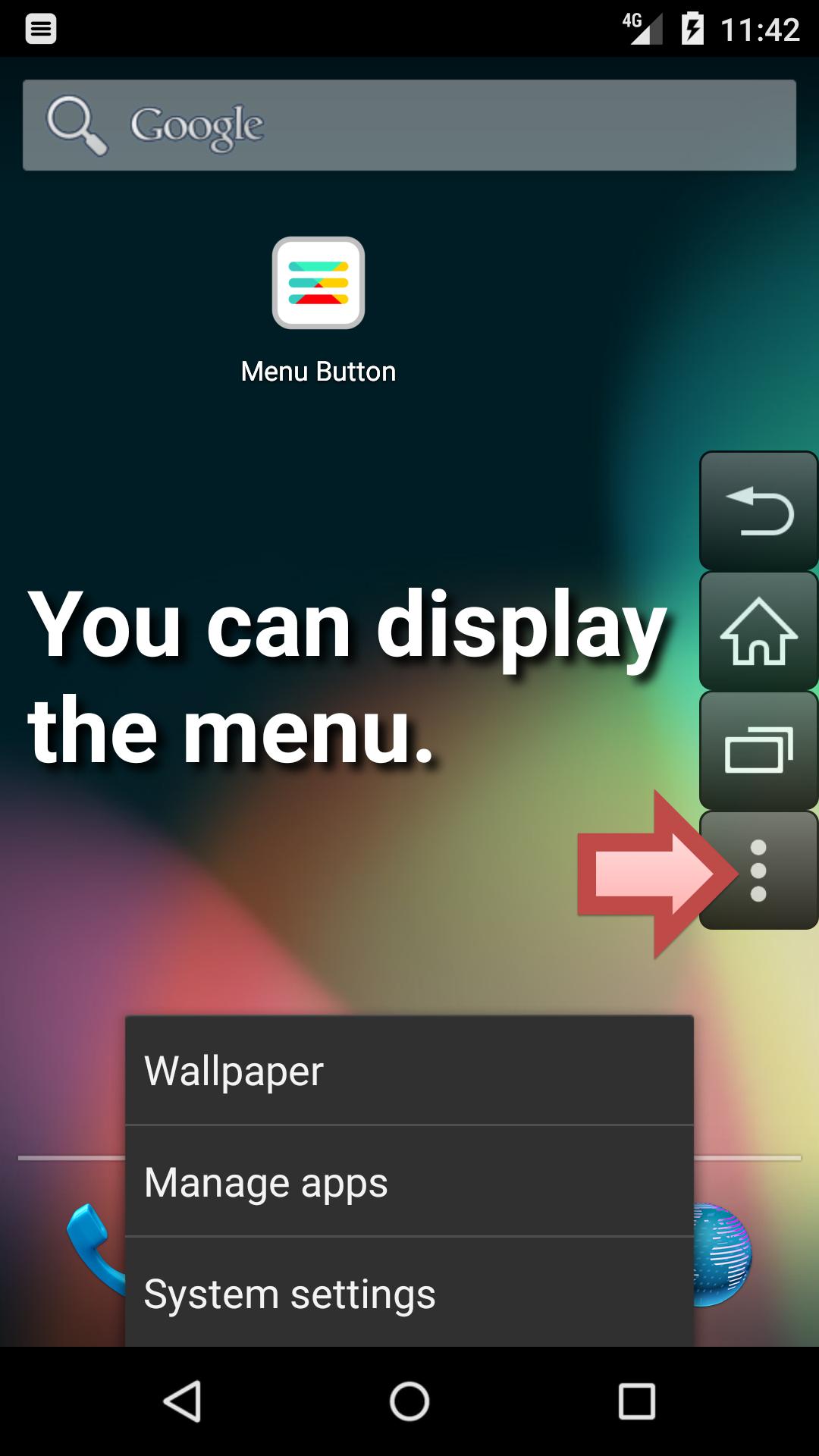
Menu Button brings back the traditional Menu key so you can access in app options that are otherwise hidden. This is especially helpful in apps that still rely on the old menu structure. You can trigger the menu on demand without navigating away. It keeps your workflow consistent across different apps.
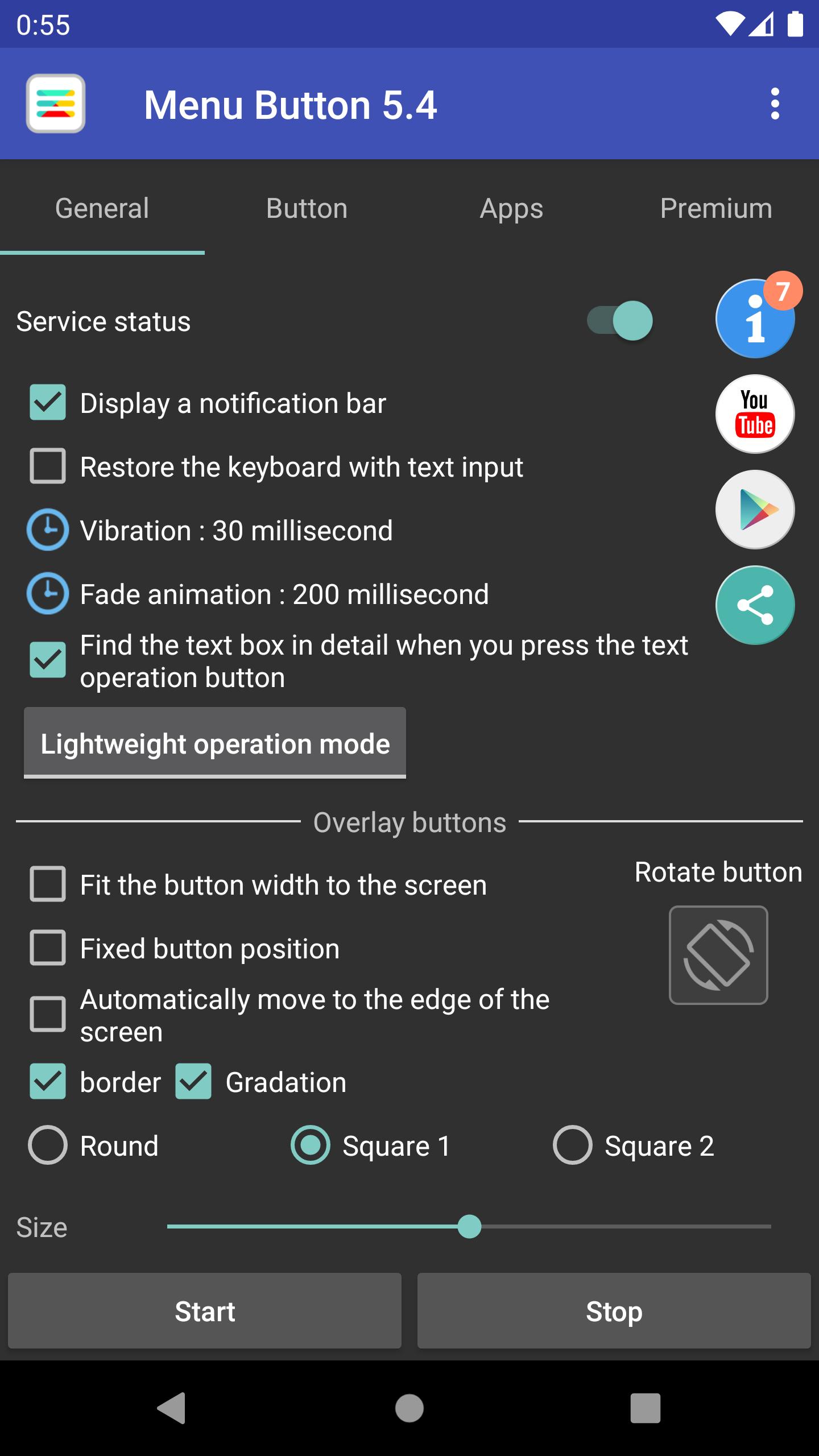
Floating controls you can customizeMenu Button adds a floating button bar that sits on top of your screen. You choose the size, transparency, color, icon style, and position to match your layout. The bar can snap to screen edges and be dragged so it does not block content. With quick adjustments, you keep controls accessible and out of the way.
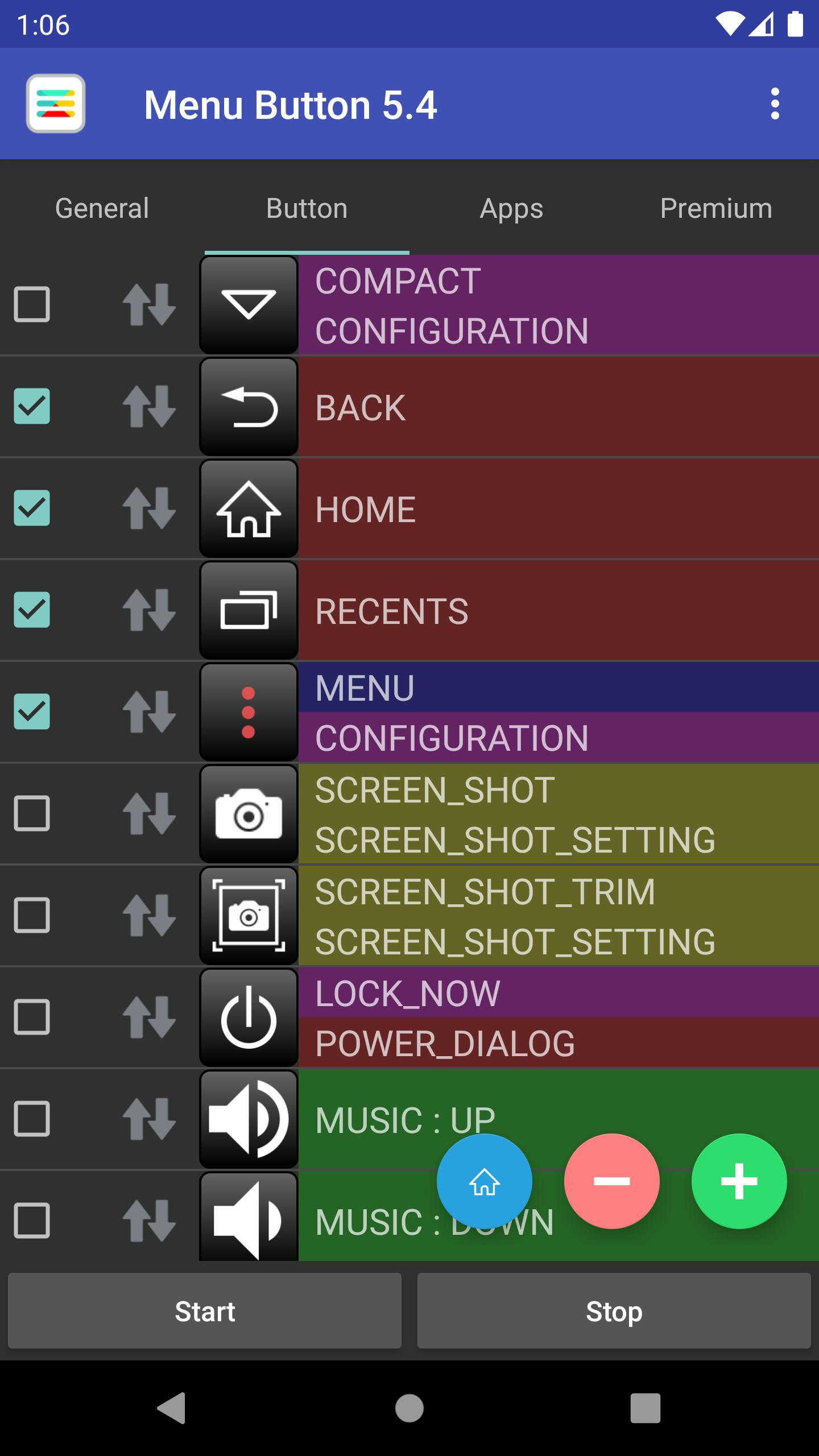
Assign tap and long press actionsYou can add as many buttons as you need and give each one a tap and a long press action. This lets you group frequent tasks and reduce extra steps. Over time, you build a simple workflow that fits your habits. Switching between actions becomes direct and predictable.
Support for navigation, power, volume, and keysMenu Button supports common actions such as Home, Back, and Recent Apps. It also covers Power, Volume Up and Down, and Mute for quick control. For keyboard style input, you can send Enter, Space, Arrow keys, Tab, and Page Up or Down. This range helps you interact with apps and screens that expect key events.
App aware buttons and launcher shortcutsYou can register favorite apps so the button bar auto activates when those apps open. Buttons can also serve as simple launchers for apps you use often. This saves taps and keeps tools close by when you switch contexts. As you move between tasks, the controls adapt to what you are doing.
To send a true menu key event, Android requires a keyboard style input method. Menu Button includes a small keyboard component for this technical purpose. The app also uses AccessibilityService only to show the floating controls and respond when apps change on screen. This design keeps the menu event reliable while maintaining compatibility across devices.
Menu Button does not collect or share personal data through the AccessibilityService API. The service is used solely to display buttons and react to app changes, such as when a new app comes to the front. The app may request QUERY_ALL_PACKAGES to let you pick apps for launcher and auto activation features. This permission exists to list and match installed apps for your configuration.
Menu Button includes ads and may offer optional in app purchases. Core functionality remains available for free so you can restore menu and navigation access without paying. If you choose, purchases can remove ads or unlock extras, but this is not required for basic use. This ensures the main tools are accessible to all users.
To get started, download Menu Button and open it on your device. The first run guides you through the permissions needed for on screen controls. Setup is quick, and you can adjust everything later as you prefer.
Menu Button restores everyday controls so you can keep using your device without relying on broken keys or hidden menus. For the most stable experience, use the Menu Button latest version to access the current set of actions and settings.
For support or more information, use the official contact options below.
Last updated on Oct 21, 2025
Minor bug fixes and improvements. Install or update to the newest version to check it out!
Latest Version
 7.3
7.3
Uploaded by
Jetpof Apps
Requires Android
Android 6.0+
Available on

Category
Report


Discover what you want easier, faster and safer.
