


Use APKPure App
Get Funimate old version APK for Android

Funimate is a mobile video editing app that combines motion design tools with creative effects.
Funimate helps users make short, polished videos on a phone when quick edits and flexible visuals are needed. It suits fan edits, anime and gaming clips, lip-syncs, and casual freestyles, while the built-in community offers ideas and weekly themes to keep projects moving. The interface focuses on speed and control, so you can arrange clips, add music, and layer elements without switching tools. If you want to start fast, you can download Funimate and explore ready-made inspirations before building your own style.
AI Studio and AI Effects
Funimate includes an AI Studio for creating characters and images that fit your edit. You can apply video masking to replace backgrounds and use simple prompts to generate visuals aligned with a scene. Community examples help you understand what works, then you can tweak results to match your clip timing.
Transitions and EffectMix
You can add transitions with a single tap and blend scenes without leaving the editor. Funimate also provides a wide set of effects and preset intro or outro animations, so cuts feel consistent across a full sequence. As you move between shots, EffectMix lets you stack and adjust to keep the look steady.
Keyframes, Layers, and Smart Motion Blur
Funimate supports keyframes and layers for precise motion control. You can animate position, scale, and opacity, then apply Smart Motion Blur to smooth fast moves in fan edits or gaming highlights. Because layers are separate, small adjustments are simple without redoing the whole timeline.
Element Library and Text
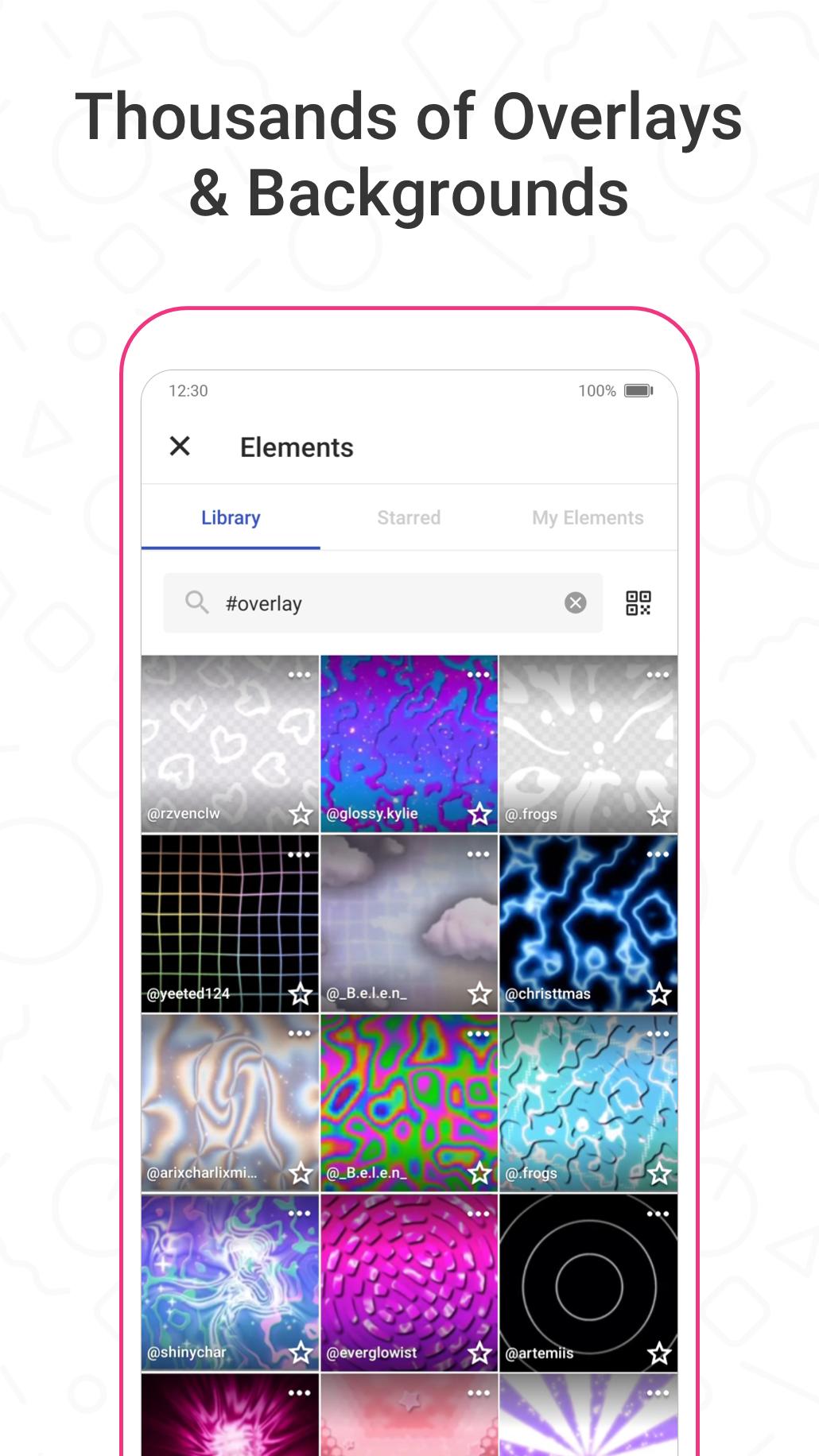
You can add overlays, stickers, backgrounds, emojis, and text in the same project. Funimate offers multiple fonts and timing controls, which makes lyric syncs or caption beats easier to match with music. Elements can be resized and arranged, helping you build a clear layout for every shot.
Music and Core Editing Tools
Funimate covers common edits in one place to keep workflows short. You can add music, cut and trim clips, reverse moments for emphasis, and create slow motion for action scenes. These tools pair well with transitions and keyframes, so you can build complete edits without leaving the app.
Community and Sharing
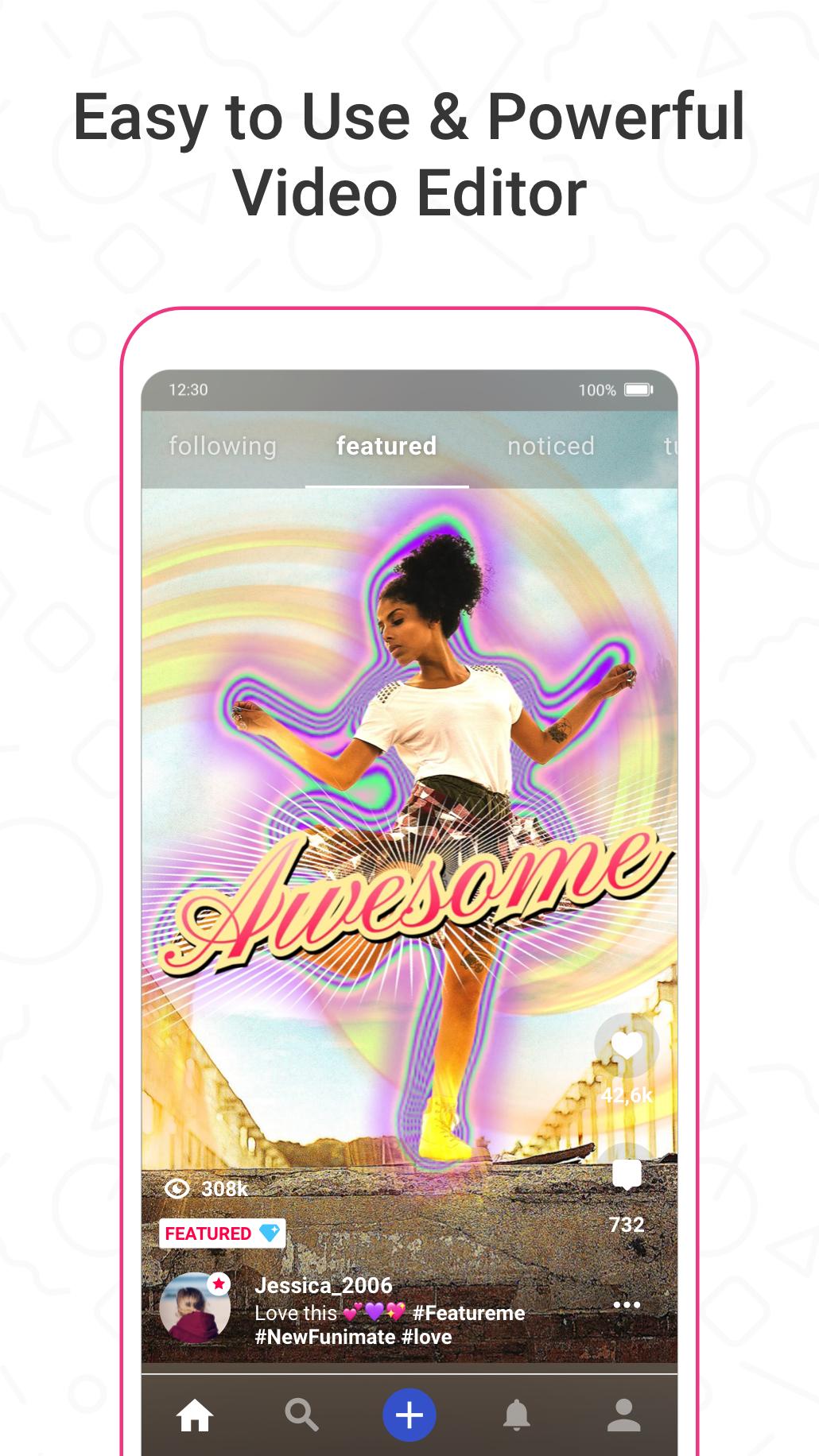
Funimate includes weekly challenges and a feed that showcases featured posts. You can share directly to platforms like TikTok, Instagram, and Snapchat or post inside the Funimate community to grow an audience. Templates and examples from other creators can guide your timing and effect choices when you are learning new techniques.
Funimate centers on short-form creativity for Android phones, especially for fan edits and fast social shares. Community participation is optional, but featured posts and weekly challenges are public within the app’s feed. If younger users will browse community content, consider supervising their viewing and guiding them toward templates and topics you find suitable.
Many users search for terms like Funimate APK, Funimate app download, Funimate APKPure, and Funimate app download apk. If you choose an old version for specific devices, keep in mind that features can differ from the Funimate latest version. When possible, use the most recent build to access newer tools such as updated effects and project presets.
Funimate for Android is focused on mobile editing with quick controls. To post in community challenges or get featured, an in-app profile may be required. If you see “Funimate Login” in help topics, it typically relates to managing your account and preserving your projects across sessions.
This quick guide walks through a basic project from import to export on an Android phone. It covers setup, editing, and sharing, so you can test tools before refining a longer sequence in the Funimate APK.
Funimate brings AI tools, transitions, keyframes, and music into a single mobile workspace for short-form edits. It suits quick cuts, fan edits, and captioned clips you can post or keep on your device. To try new effects and templates, consider installing the Funimate latest version.
For official support and more information, use the sources below.
Last updated on Apr 16, 2026
Minor bug fixes and improvements. Install or update to the newest version to check it out!
Latest Version
 14.0.9
Uploaded by
စစ္ေသြး စစ္
Requires Android
Android 8.0+
Available on

Category
Report





Discover what you want easier, faster and safer.
